The post Review: Can Toshiba’s Fusion Powered Netbook Punch Above Its Weight? appeared first on Smart Office.
]]> * 10.1in, 1,024 x 600 screen
* AMD Fusion C50 CPU & HD6250 GPU
* 250GB HDD
* 1GB RAM
* HDMI-output
 |
Starting off with its design, it’s identical to that of the NB520, which is a good thing. Unlike the smooth soft finish on the likes of the Lenovo ThinkPad X220t, Toshiba has added a dimpled pattern to the lid that makes it look a little more like padding than a coating. Regardless, it’s not just lovely to hold and lends a secure grip, but also prevents unsightly fingerprints.
Most of the NB series is available in black, red, blue, green and the brown of our previous NB520 sample, but with the NB550D you’re limited to brown and blue. This time around, we’ve received the blue model, and though it doesn’t exude quite the same feeling of understated class as the bronze finish, it’s still very attractive and certainly stands out.
 |
The lid’s blue hue is complemented by the touchpad buttons and narrow speaker grille surrounds on the inside, while the rest of the base and the screen bezel opt for black. Thankfully, that lovely, dimpled finish extends to the palm-rests, making typing a very comfortable experience if your hands are small enough that you can rest your palms on them properly.
As with the previous model, build quality is impeccable, and Toshiba is definitely punching way above the NB550D’s $499 price point when it comes to looks and feel. This premium impression largely continues when it comes to ergonomics.
As with the NB520, the keyboard is shallow but responsive and truly edge-to-edge. However, this time around we found feedback to be somewhat inconsistent between keys, and the space-bar was slightly looser and noisier than we would have liked. Shortcuts could also have been placed a little more intelligently. Mind you, it’s still one of the better netbook keyboards around, but the Lenovo ThinkPad X100e shows how it should be done.
 |
When it comes to the touchpad, its slightly rough texture can become just a tad unpleasant after extended use, but it’s otherwise nice enough. It’s also large enough to use some multi-touch gestures and its buttons offer a nice click, though after the amazing frosted glass pad on the Samsung Series 9 900X3A, it all feels slightly underwhelming.
Where the NB550D really sets itself apart from its cheaper siblings like the NB520, however, is when it comes to specifications.
 |
Star of the show is AMD’s brand new Fusion Brazos architecture, which successfully combats Intel’s Atom. Here it consists of a dual-core, 1GHz C50 CPU and Radeon HD 6250 GPU. Don’t be misled by its lowly clock speed: in the vast majority of tasks, the C50 will feel just as snappy as Intel’s dual-core 1.5GHz Atom (as found in the NB520 or Samsung NF210).
On the graphics front, meanwhile, AMD is in a whole different league. Unlike its rival’s solution, the Radeon HD 6250 will allow for Full HD video acceleration, flash-based HD video and even some light gaming.
 |
Unfortunately, Toshiba hasn’t really pulled out the stops and given the C50 2GB of RAM to play with. Instead, you’re stuck with the same 1GB of DDR3 RAM, 250GB hard drive and Starter Edition of Windows 7 that occupy most other netbooks. This is a real shame, but considering the NB550D is $18 cheaper than the NB520, one can hardly complain. Also, upgrading these yourself is really easy and there’s no warranty void sticker over the access panel.
 |
Thankfully, another area where the AMD chipset makes its presence felt is in connectivity. The basics are the same as the NB520, including three USB 2.0 ports (one of which supports Sleep & Charge to charge your external devices with the netbook turned off), SDHC memory card reader, Ethernet port and 3.5mm headphone and microphone jacks, while on the wireless front you get both Wi-Fi N and Bluetooth 3.0. Naturally the NB550D also supports Toshiba’s Sleep & Music functionality.
However, unlike the NB520’s analogue VGA video output, the higher-end model offers HDMI. Along with the Radeon HD 6250’s Full HD (1080p) video playback abilities, this lets you hook up to monitors or televisions and turn this Toshiba into a portable entertainment centre.
Unfortunately, hooking the NB550D to an external screen is a tempting proposition, as Toshiba has stuck with a sub-HD, 1,024 x 600 resolution 10.1in screen. Even the cheapest configurations of competing netbooks like the Lenovo ThinkPad X100e offer 1,366 x 768, and this is yet another example of unfortunate corner-cutting.
 |
We can’t say we’re fans of the screen’s glossy coating, either, though this does help to lend colours that extra little bit of punch and aids perceived contrast. Viewing angles are rather narrow too, and the slight graininess we noted when reviewing the NB520 is still present – hardly surprising considering this screen is the exact same model. By general netbook standards, it’s about average but that’s precisely why we hoped for better. A standard definition webcam is also integrated into its glossy bezel.
Thankfully, the Harman/Kardon speakers are just as amazing as we remember. Whether playing movies, games or music, these stereo efforts produce levels of volume, detail and clarity that far surpass any other netbook, and negate the need for headphones or seperate speakers while on the move.
 |
We were most interested in how AMD’s dual-core Fusion combo would compare to Intel’s dual-core Atom when it comes to battery life. Toshiba claims nine and a half hours for the NB550D. In our tests we did find this netbook to be more power-hungry than its Atom counterpart, but don’t forget you’re getting a heck of a lot more graphics grunt for your juice here, easily equivalent to Atom plus Nvidia ION.
Keeping this in mind, the NB550D managed an impressive six hours and 20 minutes before giving up the ghost (looping a standard definition video with screen brightness at 50 percent and wireless radios turned off). Finally, AMD is competitive with Intel across the board, at least in this ultra portable low power sector.
 |
In summary, the NB550D is a beautifully designed, well-built netbook with superb speakers, decent ergonomics, and relatively powerful graphics backing its dual-core CPU. Further specs are rather basic, and it’s lacking niceties such as USB 3.0. It’s also marred by a somewhat sub-par, sub-HD display.
However, its reasonable $499 price makes these omissions far easier to swallow. Compared to the $517 NB520, there is no competition: the NB550D is more than worth the tiny price difference.
 |
Compared to most netbook rivals, it also comes out tops – for now. The biggest challenge for the NB550D is that plenty of other Fusion-based netbooks/ultraportable laptops will be making their way onto the Australian market in the very near future, and Intel’s Atom series isn’t standing still either. It’s also worth noting that quite a few older generation, Celeron-based ultraportable laptops (like the Lenovo IdeaPad U160 to name but one) with HD Ready screens, 2GB of RAM and ‘proper’ versions of Windows 7 are now heavily discounted, so be sure to check for any bargains before buying.
Verdict
Like the NB520, Toshiba’s NB550 is very attractive and well-built. Its AMD Fusion innards give it the ability to handle Full HD video on and off-line as well as providing an HDMI-output, strengths which put it a step above most budget netbooks. Other specifications are basic and the screen is still sub-HD, but considering its low price these issues are easy to forgive. Throw in the soft-touch finish, decent battery life and excellent speakers, and you have one of the better entrants in its class – though heavy discounts on older ultraportables make for strong competition.
 |
Read the original review here
The post Review: Can Toshiba’s Fusion Powered Netbook Punch Above Its Weight? appeared first on Smart Office.
]]>The post REVIEW: Samsung 9000 Notebook, How Does It Stack Up Against A Mac? appeared first on Smart Office.
]]>Well, it certainly kicks the competition to the kerb when it comes to specifications, connectivity and performance. But as it’s aimed at the designer crowd, let’s take a look at its visual appeal and build first.
 |
Though Samsung quotes its laptop as being thinner than the latest Air revision, things aren’t quite as straightforward as that. While Apple’s laptop tapers from 17mm to a super-svelte 3mm, Samsung’s effort ‘only’ manages 16.3mm to 15.9mm from end to end. Impressive as that might be considering the amount of connectivity and processing power stuffed inside the 900X3A’s chassis, it means that it doesn’t look nearly as slim and minimalistic as its rival.
 |
Thankfully it’s also lighter, though again only just: at 1.31kg compared to the Air’s 1.32kg, the difference is not really noticeable.
What about build? For its outer shell and palm rest the 9 Series uses Duralumin, an aluminium alloy that’s twice as strong as the regular stuff, to ensure this is one of the more rugged metal-clad laptops around. However, whether this impression is true or not, it simply doesn’t feel as sturdy in the hand as Apple’s milled aluminium chassis.
 |
Essentially, the Air feels like it’s been carved out of a single block of metal, while the 900X3A feels like metal panels have been attached to a frame. Don’t get us wrong; the 900X3A is still one of the best-built ultraportables we’ve had through the office, with perfectly fitted parts and barely a hint of flex. And it looks pretty special too, especially given the black livery.
 |
That said, while the lid sports a brushed finish that’s very attractive and the silver Samsung logo set to the side is by no means unsightly, even picking the 900X3A up once will result in a plethora of highly visible fingerprints, and the lid’s hinges also break up the laptop’s smooth lines. Furthermore, the lid’s metal top layer extends over the plastic screen surround below, a design feature that isn’t particularly appealing and gives an incoherent impression. The effect is exacerbated by the edge being left unpainted; a touch that would otherwise be desirable but here does highlight this issue.
Opening the 900X3A up, we’re greeted by a similarly cohesively-challenged interior due again to that recessed screen bezel with its protruding metal outer edge, and Samsung’s decision to use a combination of metal and glossy plastic in the keyboard surround. If it had just used metal only for the entire base, this would be a notably more premium-looking machine. Fingerprints are again a serious issue, and you’ll want to wipe the palm-rests regularly.
 |
Another annoyance is that the glossy plastics used in the base and the screen’s bezel are different, with the former sporting the extremely subtle gold-flecked effect we saw on many previous Samsung laptops including the premium X360. We’re also not sure about the shiny silver power button – we see what Samsung was trying to achieve but we don’t feel it’s quite worked.
 |
So far, we’ve been quite negative regarding the 900X3A’s looks, but let’s just put things into perspective: this is only in comparison to the Macbook Air, to which no other ultraportable has come even close where sheer style is concerned. On its own merits and when compared to the rest of the Windows laptop market, Samsung’s slick, light and well-built 9 Series is one of the most attractive entrants to be found.
If Samsung were to have used a less fingerprint-prone finish for its Duralumin, removed the protruding edges, used metal for the entire base and etched the power button, its 900X3A would have been a real winner in the design stakes. As is, it’s attractive but not totally lust-worthy.
 |
When it comes to usability, things are far less ambiguous. The isolation or Chiclet keyboard features well-spaced, matt black keys. Layout is flawless, though we do miss the X360’s extra function keys which were tucked in to either side of the cursor keys.
 |
Feedback is shallow but decent considering how little space Samsung has to work with, and the ‘click’ the keys provide is subtle but adequate. Our only complaint is that on a few occasions the touchpad inadvertently registered our palm-movements and changed the cursor position during typing – something that can be managed with the touchpad software.
 |
One important advantage the Series 9 has over Apple’s Air is that it offers a backlit keyboard (though the original Macbook Air also had one, Apple removed this feature in its latest refreshes). Samsung’s backlighting system can be controlled manually or automatically by an ambient light sensor which worked flawlessly in our testing, and you can choose between no fewer than seven different brightness settings.
What really stands out from the crowd and its Samsung predecessors, though, is the 900X3A’s superb touchpad. Constructed from a single sheet of unmarked, sand-blasted black glass, the large multi-touch pad looks and feels lovely. Its surface offers the ideal blend of smooth and textured, and is very responsive.
 |
We’ve had serious issues with touchpads integrating their buttons into the touch surface in the past. The HP TouchSmart tm2 is the most problematic example, but Samsung’s own SF310 also caused some annoyance.
However, the Lenovo ThinkPad X220t convinced us it could be done right on a Windows laptop, and now Samsung takes this a step further: we actually prefer the 900X3A’s touchpad to any other we’ve tried, including those with physical buttons. The integrated ‘buttons’ here offer perfect feedback with a positive click and absolutely no dead zone, and the pad never misinterpreted our presses as touches. Brilliant! Compared to the Air’s touchpad, it’s essentially a dead heat, which is really saying something considering how highly we regard that.
From the 900X3A’s class-leading touchpad things only get better, especially when it comes to audio and video. Considering how little space the 1.5W speakers have to play with, the volume levels they produce are nothing short of amazing. Admittedly they distort at maximum and are inevitably lacking in the bass department, but even with the volume turned down we would be more than happy to use these for entertainment.
 |
If anything, the screen is even more impressive. In fact, if we hadn’t just reviewed the Lenovo ThinkPad X220t with its lovely IPS-panel display, we would be classing this as the best display we had seen on a small laptop. As you might have guessed from that, the 900X3A still uses good old TN, but this 13.3in panel doesn’t display many of the weaknesses we would usually associate with the technology.
First off, there are its viewing angles. Horizontally, they are close to infinite with hardly any drop-off in contrast or corruption of colour. Even viewing from the top results in minimal contrast and colour shift, leaving the image eminently viewable. Only when viewing from the bottom do things become unwatchable, and on a laptop that’s not a likely scenario.
Then there’s the contrast and backlighting. Backlighting was very even with not a hint of bleed, meaning no distracting pale splotches while viewing dark material. Black levels were also superb, so you can really pick out every detail in dark and gritty movies and games, regardless of how bright you set the backlight.
Speaking of brightness, this is another factor that sets the Samsung apart. At 400 nits, Samsung claims its 900X3A has the brightest display of its size in the world, and after nearly getting our retinas seared off we’re not about to argue. The display can go from almost completely dark for ultra battery saving to painfully bright, which is handy when trying to work or play in a sunny location.
 |
Combined with excellent sharpness, we really can’t think of any negatives with this screen, especially since Samsung has made the excellent decision of going for a matt screen finish to keep reflections to a minimum! We would even say it beats that on the 13.3inch Macbook Air, except Apple offers a higher 1,440 x 900 resolution compared to the 900X3A’s 1,366 x 768. This may sound like a deal breaker but in use the Series 9 still feels like it has plenty of desktop real estate.
Rounding off the Series 9’s audio-visual talents is high-definition (720p) webcam, yet another win over its closest rival.
 |
Connectivity is also streets ahead, mainly due to the presence of USB 3.0. Because the laptop’s tapered sides are too thin to accommodate even USB ports without sticking out, Samsung has implemented a rather nifty solution: three ports each on both the left and right side are found when you pull down magnetically-held flaps. We feared these would be a weak point and might break with constant use, but in our testing we found the mechanism to be very sturdy.
 |
On the left we have a proprietary Gigabit Ethernet port which requires an adapter to hook up, a micro HDMI port and a USB 3.0, or SuperSpeed port. As a further point in its favour, Samsung actually supplies the Ethernet adapter as standard, rather than making it an expensive optional extra as with Apple’s Air.
 |
On the right you’ll find a micro-SD card reader, 3.5mm headphone/microphone jack and always-on USB port which can be used to charge devices even if the laptop is turned off. Last but not least, Bluetooth 3.0 and Wi-Fi N are also on board.
The good news continues with the 900X3A’s specifications, with the headline being its use of a dual-core Intel Core i5-2537M. Intel’s new Sandy Bridge low voltage mobile processors provide the best efficiency to performance ratios on the market, so though its standard clock speed is only 1.4GHz, this can turbo clock up to 2.3GHz and utilizes Hyperthreading to provide up to four virtual cores. Its CPU alone makes the 900X3A the most powerful ultraportable in its class, and will completely wipe the floor with the Macbook Air’s paltry 1.86GHz Core 2 Duo, which is by now two generations behind.
The 9 Series also ships with 4GB of RAM as standard. It’s configured in a single stick of 4GB taking up one of the two DIMM slots so Samsung can conceivably offer models with 8GB of RAM in the future. What’s more, though Samsung obviously doesn’t encourage ripping the laptop apart , it would theoretically be possible to upgrade these yourself.
 |
| Thanks to its Sandy Bridge processor paired with a fast 128GB SSD, the 900X3A trounces most laptops in the performance stakes. |
For storage there’s a capacious 128GB SSD (leaving you with a 98GB capacity as a 21GB section is reserved for a recovery partition), and though the 13.3in Air offers the same capacity, its SSD is likely to be slower due to using an older controller. We’re yet to confirm how this is configured, and thus how easy it might be to upgrade, but we suspect it will be something of a chore to do so.
The only area where the Air still wins out in terms of internal specs is in offering dedicated graphics, albeit in the shape of the rather dated Nvidia GeForce 320M. This is better for light 3D gaming and Photoshop, but Intel’s integrated HD-3000 solution comes out tops for hardware video decoding.
As expected, the OS of choice is Windows 7 Home Premium, and the install is fairly clean with only a few Samsung applications. Samsung’s proprietary fast-booting software ensures that Windows boot times are reduced to as little as a claimed 15 seconds, and in our testing the 900X3A came close with an average of 20 seconds. One minor annoyance is Samsung’s Wireless app which keeps notifying you of the available connections every five minutes, but this can easily be turned off.
 |
As with the Air, the six-cell, 46Wh battery in the 900X3A is non-removable, so we were hoping Samsung’s quoted battery life of seven hours wasn’t an exaggeration. Again, the Series 9 allayed our fears by providing over four hours with Wi-Fi and Bluetooth enabled, while switching these off and lowering the brightness to the 40 percent equivalent we run the Productivity test at on other laptops resulted in a solid seven hours and 20 minutes.
In general use the 900X3A stays cool, only getting warm on the left and running very quietly even under load. In fact, in anything but the quietest environment it’s completely inaudible.
Finally, we come to value, and this might come as a bit of a shock: the RRP of the 900X3A is a whopping $2499! However, to put this seemingly high price into context, the Samsung might not look as sexy or offer as high a resolution on its otherwise superior screen, but provides a vastly better processor and platform, fast external connectivity with USB 3.0, a backlit keyboard and, of course, Windows 7.
 |
Our only real complaint, aside from the somewhat underwhelming design (again, only when compared to the Macbook Air – among Windows 7 laptops it has few rivals) is its high-maintenance glossy finish, and it would have been nice to see an included cleaning cloth and carrying case when paying this much.
We’re also rather disappointed that the 11inch Series 9 is not set to be making it over to this side of the Pacific. Hopefully, if the 13 inch model is successful, Samsung will be persuaded to change its mind.
Verdict
Lighter and arguably thinner than Apple’s Macbook Air, the 13.3inch, Series 9 900X3A may not be as pretty and attracts more fingerprints, but offers far more power and connectivity. Combined with a truly excellent screen, surprisingly good speakers, the best touchpad on any Windows laptop and decent battery life, if you’re looking for one of the thinnest and lightest Windows 7 machines around it’s an excellent choice and well worth its high asking price.
 |
http://www.trustedreviews.com/
The post REVIEW: Samsung 9000 Notebook, How Does It Stack Up Against A Mac? appeared first on Smart Office.
]]>The post Review: Top End Lenovo 17inch ThinkPad LED Backlit Display appeared first on Smart Office.
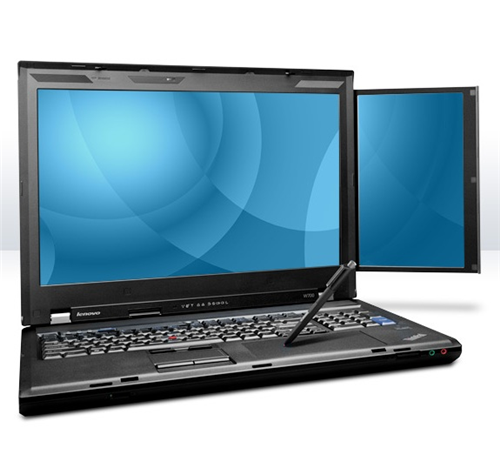
]]>Inevitably this makes it a huge, hulking beast but Lenovo continues to make up for this with a raft of connectivity and hardware that would make most other laptops weep. You’ve got Nvidia Quadro graphics for professional 3D modelling and GPU acceleration, a built-in HueyPro hardware colour calibrator, USB 3.0, eSATA, DisplayPort, and optional dual ExpressCard slots. Are you hooked yet?
Naturally, Lenovo backs all this goodness with some pretty impressive potential specifications. An Intel Core i7 820QM quad-core processor that will turbo-clock up to 3.06GHz leads the charge and this can be partnered with Nvidia’s Quadro FX2800M, which includes 1GB of video memory. All this makes for a killer combo for anything from rendering and encoding to gaming. Memory quotas start at a miserly 2GB but you can get all the way up to 16GB, with our review model including 4GB.
 |
Also, at the W701 price point of $7,949, you might expect an SSD as the boot drive, rather than the – admittedly speedy – 7,200rpm, 500GB hard drive, though at least it’s protected against shocks and vibration with a rubber mounting system. For some extra cash you can upgrade to a 128GB SSD and there’s a second slot for adding another hard drive or SSD, with RAID options available.
As you would expect from a ThinkPad, you’ll find the Professional version of Windows 7 running the show, rather than the Premium edition found on most consumer and some business laptops. OS aside, the installation is relatively free of extraneous software, which is how we like it, with only Microsoft Office, McAfee antivirus, Intervideo WinDVD, Corel DVD MovieFactory and heuyPRO’s image calibration software preinstalled.
There’s also some incredibly slick ThinkVantage software which provides easy and attractive management for things like battery life and networks.
As mentioned, the W701ds offers an astonishingly impressive array of connections. Along the left you’ll find a mini FireWire port, one combined eSATA/USB 2.0 port and one USB 3.0 port, though it’s not marked in the usual distinctive blue. There’s a 34mm Express Card slot, though we honestly don’t see a need for it on this laptop, and a secondary bay that you can choose to fill with either a second 54mm ExpressCard slot, a Smart Card reader or a CF card reader. At the front we have a physical Wi-Fi switch, memory card reader, and 3.5mm headphone plus microphone jacks.
On the left side you’ll find a further three USB 2.0 ports, one of which is marked in yellow to denote that it is ‘always on’, and can be used to charge devices even when the laptop is turned off. Next to these is that rarest of creatures these days: a modem port. Some might call it completely redundant, but there are still situations where you may need it, and it’s good to see Lenovo covering every contingency.
 |
On the right there’s a small hole for the Wacom-enabled stylus, while optical duties are handled by a DVD-Rewriter (after all, Blu-ray is hardly required for a business machine – right?). The laptop’s back houses extensive video connectivity, including VGA, dual-link DVI and DisplayPort, together with a Gigabit Ethernet jack. Wireless is well catered for with both Bluetooth 2.1 and Wi-Fi N, and there’s a fingerprint scanner for those who hate memorising passwords.
When it comes to usability, Thinkpads are usually second to none, and the W701ds is no exception – though with a few caveats. Unlike most other laptops these days, which feature ‘slim’, isolation-style keyboards, Lenovo still provides ‘proper’, keys. Their action is superb with each key feeling very solidly planted and providing a large amount of travel that is well-defined yet soft, so it’s one of the quietest and best typing experiences around. Layout on the full-size keyboard is also excellent, aside from the Lenovo quirk of still putting the Fn key to the outside of Ctrl.
The Enter keys on both the keyboard and numpad are clothed in the traditional ThinkPad blue. There’s a full set of function keys and dedicated volume controls, as well as a dedicated ThinkPad button which can be used to access ThinkVantage features.
 |
Anyone who has used a ThinkPad before will be familiar with Lenovo’s TrackPoint, a tiny, rubber-topped joystick in the centre of the keyboard operated with the tip of a finger. It has its own set of three buttons above the touchpad, and while it does take a little getting used to, it’s quite easy to operate and even beats the touchpad in some situations. However, unlike with the ThinkPad X100e, on the W701ds these buttons are loud! Their distinctive click can easily be heard across the office, and is very distracting.
Thankfully the touchpad’s buttons are similarly responsive but don’t suffer from the same issue. However, the pad itself is rather on the small side, as it’s cramped by the TrackPoint buttons. This is rather unfortunate on a laptop as large as this beast, though of course, with the integrated Wacom tablet providing a highly accurate third navigation option (and the likelihood that you’ll be using this monster on a proper desk where you can attach a mouse), it’s not much of a problem.
Let’s talk about some of the W701ds’ special features. The integrated Wacom tablet isn’t quite as good as the company’s latest Intuos 4 products, but a sight more advanced than the Wacom digitizers commonly built into convertible tablet laptops like the HP TouchSmart tm2. It works beautifully and the provided stylus is comfortable in the hand, sporting the same soft-touch coating as the ThinkPad’s lid. It offers 1,024 pressure levels and tilt sensitivity, and is as close to the experience of drawing on paper as any laptop will give you. The only potential issue is that its fixed position means it’s biased towards right-handed users – trying to perform keyboard shortcuts if you’re using the pad left-handed is difficult at best.
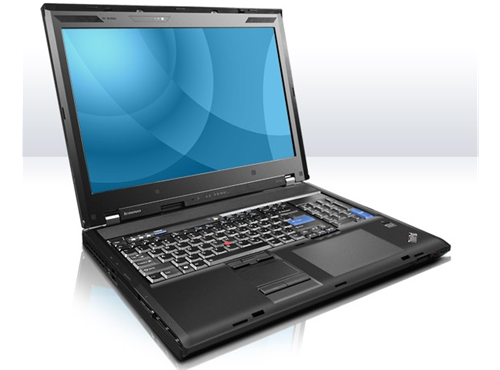
As you would expect considering this ThinkPad’s price and target market, the main, 17in screen isn’t exactly your average affair either. Not only does it provide a 1,920 x 1,200 resolution, matching most professional monitors in providing those extra few vertical pixels, but it’s RGB-LED backlit too, providing far greater colour accuracy, gamut and saturation, higher contrast and better viewing angles than your average laptop display. We first came across this type of technology with the Dell Studio XPS 16, and it hasn’t lost any of its appeal – the only thing that beats it is having an IPS panel, and HP’s maxed-out EliteBook 8740w is the only available laptop we know of that has one of those.
 |
To get the best out of its screen, the W701ds features a built-in hardware colorimeter courtesy of HueyPro. Calibrating the screen couldn’t be simpler: start up the software and close the lid, and after about a minute you have a fully hardware-calibrated screen!
After calibration, the RGB-LED backlit display breezed through our greyscale and colour tests. This not only means that you’ll get great colour accuracy while doing graphically-intensive work, but also that viewing pictures, videos and games will be a more detailed and enjoyable experience, especially since the screen has such a small dot pitch and everything is razor-sharp.
Unfortunately, even the best backlighting in the world can’t completely disguise the fact that you’re dealing with a TN panel here, and while viewing angles are vastly superior to most laptops, they’re by no means perfect (and not even close to IPS). There was also some minor but noticeable banding on the screen and, more damningly, backlight bleed from both sides. However, these really are minor complaints compared to the benefits.
Getting to the slide-out secondary screen, it’s a 10.6in affair with a high 768 x 1,280 resolution. It’s also frankly rather rubbish, with TN’s inherent vertical viewing angle weakness (don’t forget, it’s essentially a standard screen turned on its side) ensuring everything looks washed out and colours are completely off.
But that’s not really a negative. After all, it’s only meant as a repository for all the tool bars, settings boxes, palettes and message windows that you don’t want cluttering up the main screen. For its purpose it does an adequate job, and the extra real estate it offers is invaluable in a multitude of situations.
Watching films on the ThinkPad W701ds is an absolute pleasure thanks to its great screen, and Lenovo has paired it with some pretty decent stereo speakers. They don’t quite match up to the 4.1 setup on the MSI GT680 or 2.1 Dell XPS 17, but they’re certainly up to providing enjoyable entertainment, providing some bass and plenty of oomph while maintaining clarity at the high end.
As with all customizable laptops, performance will be what you can afford to make it, but our test sample is certainly no slouch. The Intel Core i7 820QM quad-core processor supports HyperThreading for up to eight virtual cores, with clock speed ranging from 1.73GHz when all four cores are under load to 3.06GHz when fewer than three are in use.
Naturally it’s significantly outperformed by Intel’s new Sandy Bridge CPUs as found in the MSI GT680, but it should still do the job rather nicely until Lenovo updates its high-end ThinkPads.
On the graphics front, the Nvidia Quadro FX2800M card gives you 96 CUDA cores to play with, which will accelerate compatible applications (like Adobe Photoshop CS5) and even allow for light gaming, though DirectX11 is not on the menu. Indeed, at 1,366 x 768 the W701ds managed a very respectable 33.4 frames per second (fps) average in a DirectX10, medium-detail run-through of Stalker: Call of Pripyat, though upping this to the screen’s native resolution and maximum detail resulted in an utterly unplayable 16fps.
 |
As you would expect from a ‘mobile workstation’ with powerful, energy-hungry components, battery life isn’t fantastic. But considering the power and features on offer, we were still impressed by the two hours and 40 minutes the W701ds managed to wring from its 7800mAh/85Wh battery in MobileMark’s low-intensity Productivity test. Considering it’s hardly the most portable machine around, this is really as much as you would need, though in the intensive DVD test it only lasted an hour and 37 minutes.
Finally we get to value. With an RRP of $7,949, it’s not exactly for everyone, and its internal specifications could be considered somewhat stingy for the outlay. But then, if you’re a photographer, digital artist, designer, architect, engineer or scientist, you (or your company) can afford it and you can get hold of one, no other laptop in the world offers you all these features in a single, mobile package. Throw in its superb build quality, class-leading connectivity and one of the best screens around, and we would say that for its niche market it holds up quite well.
Verdict
It may only appeal to those with big, specific demands and bigger wallets, but the Lenovo ThinkPad W701ds’ complement of unique features (like its RGB-LED backlit screen with built-in hardware colorimeter, secondary display and integrated Wacom tablet) means it has no competition. Considering it’s also powerful, very well-built and offers every connection you could want along with surprisingly decent battery life, it truly deserves its title of ‘mobile workstation’.
 |
http://www.trustedreviews.com/
The post Review: Top End Lenovo 17inch ThinkPad LED Backlit Display appeared first on Smart Office.
]]>The post Acer Iconia Tab W500: An Icon In The Making? appeared first on Smart Office.
]]>The Acer Iconia W500 is in several ways much like better-known tablets such as the Motorola Xoom and Samsung Galaxy Tab 10.1. It has a 10.1in screen, comes with a wedge of internal flash memory and is primarily controlled using the capacitive touchscreen.
 |
The great big, gaping difference between this tablet and an Android-powered alternative is that it runs Windows 7, as suggested by the physical Windows button on its front. In order to mitigate for the truth that Windows isn’t designed for use with a touchscreen, Acer has produced a dedicated keyboard dock for the Acer Iconia W500 that adds a full-size ‘board and a rubber nipple mouse cursor controller, complete with the standard mouse buttons.
This dock also adds two USB slots and an Ethernet port, but all the basic physical connectivity options you should want are included on the tablet itself. There are two full-size USB ports, HDMI output, 3.5mm headphone jack, SD card slot and SIM slot. Bucking the tablet trend, the miniature equivalents aren’t used here. Like a McDonalds’s fan with no self control, the Iconia W500 opts for super size every time, with full-size SD card and HDMI connectors on-board.
 |
This dedication to the full fat option helps to make sure the Acer Iconia W500 is ready for most eventualities without the need for many extra adapters or cables. However, it doesn’t help make it a slender contender. At 16mm thick and weighing 970g it is chunkier and heavier than most non-Windows alternatives. Try using it one-handed for any length of time and you’ll either develop forearms of steel or RSI. Even with two hands involved, it feels much heavier than the original iPad – which is already significantly heavier than the current iPad 2.
All that puppy fat isn’t there without reason though. As well as the extra connectivity, the Acer Iconia W500 offers 2GB of RAM and an AMD C-50, which packs-in an AMD 6250 graphics card on top of Tegra 2-beating CPU performance. Of course, Windows 7 needs this extra power, being a “full” OS rather than an evolution of a simpler smartphone OS like Android Honeycomb.
 |
As necessary a compromise as the extra bulk and weight of the Iconia W500 may be, it would put us off thinking of the W500 as any more portable than a netbook or ultra-portable laptop. It’s just a bit too heavy for comfort, especially when its all-plastic outer construction doesn’t leave you feeling as if you’re grasping hold of a truly desirable piece of kit. It’s hard to fall in love with, so having it by your side never felt to us like an imperative.
A key bullet-point in the argument that the Acer Iconia W500 is a viable netbook-replacement is its keyboard accessory. It offers full-size keys plus a rubber trackpoint instead of a mouse trackpad. However, it’s not quite the seamless solution we were hoping for.
The tablet slots into this dock with the aid of the W500’s bottom USB port and two stabilising metal prongs that are shoved into the tablet’s backside. Once connected up, this join is stable, but something doesn’t quite feel right.
 |
As there’s no trackpad, the keyboard feels oddly stunted even though its keys are fully-grown – not unlike the official keyboard dock for the first Apple iPad.
The most pressing problem, though, is the way the dock mechanism works. Rather than having a hinge into which the tablet sits, which then allows you to tilt the tablet back and forth just like it were the screen on a laptop (as on the Asus Eee Pad Transformer), the W500 has a fixed dock. The mounting points on the dock do fold flat into the body of the dock when not in use but the tablet has to be removed for this to work. Fold the dock’s mechanism all the way back in and the tablet and dock can be sandwiched on top of each other, but compared with a simple laptop hinge, it’s hopelessly clumsy.
 |
Two magnets at the back keep one half of the W500 in place when arranged like this, while a plastic hook secures the other half. Under a small amount of pressure, this works just fine, but give the magnet-secured back-end more than a nudge and it’ll separate, threatening to take the weedy plastic hook with it. Indeed it’s quite easy to have one or other of the parts go flying if you’re not careful how you prize them apart. You can reduce the risk of damage to a minimum by grabbing a case for the tablet but nonetheless the whole solution feels like a bit of a fudge.
 |
The chiclet-style keyboard is comfortable to type on – much more so than the iffy virtual keyboard Windows 7 has on offer – but its built quality is unremarkable. It feels plasticy and toy-like, giving us some concern about how long its rotating dock parts will last.
The rubber mouse nipple is also an acquired taste. It works rather like a tiny analogue joystick – nudge it lightly and the cursor moves slowly, press with more force and it’ll move quickly. It takes a little getting used to, but is surprisingly refined in its execution, given it is a tiny rubber blip nestled between a few keys in the keyboard. We found its placement, relative to the two mouse buttons, harder to get used to though.
 |
Using your middle finger to drive the miniature rubber flight stick, you can keep your first and third fingers on the two buttons, but it doesn’t feel comfortable and any other arrangement feels slower and clumsier than the traditional mouse/trackpad setup.
The keyboard of the Acer Iconia W500 is largely a failure, even if it is comfortable to type on. However, it’s a necessary one in our book as Windows 7 is simply not usable with the tablet alone.
Reasons why barely need to be introduced – Windows 7 was designed with desktop computers and laptops in mind, which are almost universally equipped with keyboards and mice or trackpads. Without the keyboard dock in-place, all the Acer Iconia W500 has to rely on are its 10in capacitive touchscreen and a physical Windows button that brings-up the Start menu. Single taps on the touchscreen act as left-button clicks while a longer press works like a right mouse button click.
 |
The touchscreen itself is responsive and accurate, but there’s lag within the software that makes the Acer Iconia W500 less responsive in use than its dual-core Android rivals. There’s a split-second gap between when the touchscreen is pressed and when it registers within Windows’s “home” screen, and while touchscreen-oriented features like multi-touch zooming are available in IE and other browsers, they’re not fast.
Zooming isn’t smooth, demonstrating that while the AMD C-50 processor may be nippy among its tablet peers, it’s a slouch compared with similarly-priced Windows laptops. However, it is largely down to the Windows software and how out of place it feels with a touchscreen rather than being solely the processor’s fault. Basic navigation around the Windows interface is fairly quick though, down in part to the 2GB of RAM – the minimum required to get decent performance out of a standard install of Windows 7.
 |
Interface quirks also continually slow down progress. The virtual keyboard is particularly annoying. Tap on a text entry box and a keyboard icon will appear next to the cursor. You then need to tap this icon to bring up the virtual keyboard. In typical Windows fashion, it’s not a standard window that fits into what’s currently on-screen – it can be docked or moved about. Dismiss it and it’ll hide away at the side of the screen, needing to be dragged back on-stage when required.
While some may appreciate this flexibility, it’s not conducive to doing things snappily in real-world usage. The line between plenty of flexibility and too much faffing is a thin one, and the Iconia W500 often finds itself on the wrong side.
 |
Skipping between using the Acer Iconia W500 and the Asus Eee Pad Transformer, a hybrid Android tablet in the same cost ball-park, it’s hard not to be drawn away from the Acer. It’s big, it’s clunky and using it feels comparatively clumsy. However, it’s important not to forget the supreme versatility of Windows. You can install virtually anything you like on it, just as you would with a laptop, and the two USB slots let you plug in all sorts of control peripherals – lessening the need to resort to the dedicated keyboard. With a bit of thought and an accessory or two, you can ease some of the tablet’s troubles – but it does require time and effort, and probably some additional cash.
The Acer Iconia W500 features a dual-core 1GHz AMD C-50 processor, 2GB of RAM and Radeon HD 6250 graphics – built into its processor. This graphics chip in particular tops most netbook and tablet alternatives, letting you playback 1080p video and play some less demanding games. Even ultra-high quality 42MBit MKV files, equivalent to the highest quality Blu-ray content, pose no problem for the Acer Iconia W500.
 |
The screen quality is decent, with excellent viewing angles and a very bright and colourful display. There’s a slight granularity to the image that makes individual pixels more visible than they should be, which is surprising when the resolution of this tablet is at the top end of what’s currently available for under a $1000. This effect is particularly visible in areas of lighter block colour, appearing as an on-screen texturing.
 |
There’s also some slight colour shift when the screen is angled back, making the image appear slightly green-tinted. We do stress that, these blemishes aside, the W500’s display is great. It’s a pity the tablet is so heavy or it would make an excellent on-the-go video player.
Actually there’s another problem when it comes to video. From a full charge the battery managed to hold out for just four hours, three minutes playing SD video at 50 per-cent screen brightness. While this isn’t appalling, you can expect to get the best part of double that on an Android tablet or iPad. Thanks to the good display, you can keep the brightness at a modest level and still enjoy watching video, which should help eek the most out of the battery. However, find yourself outside in the sunlight and you’ll struggle both for brightness and because of reflections.
To test out the tablet’s gaming cred, we fired-up ingenious physics-based platformer Trine, from developer Frozenbyte. At high-end settings, using the native 1280×800 resolution, with all light effects and anisotropic filtering on, the Acer W500 managed between 15 and 20 fps – playable while not hugely smooth. Reverting to low-end settings, the frame rate increased to 30-50 fps. We also benchmarked the tablet using Trackmania Nations. At medium settings, using 720p resolution, it managed 17.3fps. It’s not a gaming powerhouse, but the W500 can hold its own against the netbook crowd, and will suffice for older or casual titles.
 |
However, the classic question of “what’s it for?” is glaringly present in this case. Its plastic construction, chunky frame and relatively heavy weight stop it from being as attractive a commute partner as an Android tablet or iPad and its flawed keyboard add-on means it’s not a great replacement for a netbook. There’s still a lot to like about the Acer Iconia W500 – it has a good screen and offers even greater flexibility than an Android tablet, but for $899 the wealth of other options out there stop it from becoming a serious contender.
Verdict
The Acer Iconia W500 is a device that does the tablet cause no good. The keyboard dock is clumsily implemented but without it, using Windows 7 becomes a chore. After a few more passes from Acer’s design bods it could have been closer to a winner, but as is it’s too bulky to beat rival Android tablets and not convenient enough to worry ultra-portable laptops.
 |
To read the original review, click here
The post Acer Iconia Tab W500: An Icon In The Making? appeared first on Smart Office.
]]>The post Review: Is The Asus Eee Pad Transformer A Netbook Killer On The Loose? appeared first on Smart Office.
]]>Tablet Design and Specs
Android tablets have thus far often filled us with a special sort of dread. They’ve tended to achieve a batting average well below what Apple’s iPad series has mustered, and an honest reporting of their various failures has occasionally led to claims of fanboy-ism, money hats and the sipping of elaborate cocktails served around Steve Jobs’s Cupertino hot tub. None of which are remotely true, sadly. Thankfully, the Asus Eee Pad Transformer is here to clean the slate.
The Asus Eee Pad Transformer is an Android tablet that employs Asus’s netbook expertise, including a keyboard dock that not only makes typing easier – it also doubles the battery life and boosts connectivity. The Transformer comes as either a package or as a keyboard-less edition for a lower price, and while Australian prices won’t be confirmed for another few weeks, the current UK price undercuts the iPad 2 by a cool twenty quid. Perhaps more importantly, it’s significantly cheaper than the Android-powered Motorola Xoom, HTC Flyer and LG Optimus Pad.
Removed from the keyboard dock, the tablet bears a face similar to many of the top new-wave Android Honeycomb tablets. It’s glossy, black and rather iPad-like. Surrounding the black bezel is a strip of bronzed metal, lending the Eee Pad Transformer an impressive sense of quality that we missed in the all-plastic Samsung Galaxy Tab – last year’s top Android tablet. The back continues the bronze-brown colour theme, but is made from embossed plastic rather than metal. This texturing improves grip hugely, but falls some way behind the feel of the iPad 2’s anodised aluminium back in the quality stakes.
 |
It’s a classy product though, more so than we initially expected from Asus after encountering Motorola’s and Samsung’s rival tablets at January 2011’s CES conference. Build quality is great, and the sides of its body are tastefully minimal, in contrast to the rather laden (but feature-packed) swiss army knife-style Archos 101. On the right edge are the 3.5mm headphone jack, miniHDMI slot, microSD slot and a very low-key speaker grille. The big surprise about this tablet is that there’s no standard USB on the tablet itself. Instead there’s a proprietary connector that doubles as both power point and USB connector. This sits on the bottom edge of the tablet. Some will hate the merging of power and data transfer duties into a single proprietary connector (indeed we err towards this ourselves), but it does give the Eee Pad Transformer a hint of that Apple flavour – that taste of simplicity.
Other features include Wi-Fi, GPS and dual cameras, it’s just 3G that’s missing in this first edition.
 |
At 13mm thick, the Eee Pad Transformer is slim but not aggressively so. A laid-back approach to dieting is seen in its curved back. This slight back bulge makes the tablet more comfortable to hold, but doesn’t leave it rocking in either direction when laid on a flat surface, unlike the original iPad.
 |
At 680g, it’s a little too heavy to hold one-handed for significant periods. But of course that’s what the keyboard’s partly here for – to remedy the need to constantly keep your hands on the tablet to get it in an optimum position.
The Asus Eee Pad Transformer’s keyboard peripheral is one of its key differentiators that sets it apart from the rabid pack of Android rivals. It adds to the price of the tablet, but improves the package and its flexibility hugely.
 |
Build quality is just as impressive as the tablet too, surprisingly. The top of the keyboard is a metal plate, coloured in the same bronze hue used for the tablet’s screen surround. Similarly, the back uses the same embossed plastic as the tablet. When closed, there’s a pleasant cohesiveness to the design that reaffirms the Eee Pad Transformer’s position as a premium product.
The hinge is bound to become the part that takes the most wear if you’re planning on frequently transitioning between this device’s tablet and netbook forms, but we’re confident it can take the strain. The part that rests on whatever surface the Eee Pad Transformer is laid upon is made from metal and is protected by two little plastic feet that sit at each end of the hinge – which takes up the centre two thirds of the tablet, not the whole length.
 |
The tablet slots into this hinge, which is fully lined in felt, and is held at three spots – the data/power connector and two stabilising clips. Unlike the now-obsolete iPad keyboard dock, this peripheral lets you angle the screen just as you would with a dedicated netbook, including closing it fully, thereby protecting the screen when travelling. The design and colouring of the Eee Pad Transformer are so consistent that we’re sure you could convince most of your less techy friends that it’s simply a laptop when in the dock. Those in the know may take its slightly bulbous hinge as a giveaway, but it’s no eyesore.
 |
The keyboard dock uses an isolated-key keyboard with near full size keys. The key action is slightly mushy but certainly distinct enough for speedy touch-typing. Indeed it’s comparable to the best netbooks. All of which makes this attachment a huge boon over other tablets – the brilliance of having the ability to bash away at full speed on a proper keyboard really cannot be overstated.
When dealing with casual keyboard duties, the temptation to tap away at the touchscreen rather than use the trackpad is very strong but for longer-form emails and documents the full keyboard obliterates an on-screen virtual alternative. We took the Asus Eee Pad Transformer out for a test drive in that traditional space of the netbook – the train commute – to see how it performs. As with any smaller laptop-style device, accidental disruptive touches of the trackpad were frequent, but there’s a hardware button that lets you disable the pad for more accurate typing – which we found indispensable.
 |
With the troublesome keypad silenced, the keyboard is very comfortable to use, while the docked tablet itself sits very happily on the knees. Unless your knees are completely straight, you’ll need to keep your hands on it to avoid it slipping off onto the floor – as all the “brains” of the Eee Pad Transformer are in the tablet rather than the dock, the weight distribution is more top-heavy than a traditional laptop. When laid upon a flat surface though, it doesn’t need any such stabilisation.
The benefits of the keyboard dock don’t end at typing. It houses a second li-on battery that Asus claims will boost battery life up to 16 hours – double the eight hours of the basic tablet battery. What’s more, the dock battery will charge that of the tablet, allowing you to boost its longevity when away from a wall socket.
 |
Unfortunately, it won’t charge over a simple connection to your computer, instead requiring the supplied USB adaptor. What’s more we found it wouldn’t charge using the USB cable and our standard selection of USB plugs designed for smartphones, suggesting it draws more power than the norm. This could be something of a deal breaker were it not for the Transformers other many merits.
The Asus Eee Pad Transformer runs Android 3.0 Honeycomb, the latest version of Google’s tablet OS – and the first to be made specifically with tablets in mind. Although the differences over the previous 2.x editions are significant, the basic rules of Android still apply.
Your experience is based around a series of home screens that can be customised – or decorated if you like – with shortcuts and widgets. Widgets from previous versions of Android are still compatible with the Eee Pad Transformer, but dedicated Honeycomb baubles look better on the high-resolution screen. A handful of the essentials are included from the start, such as a clock and an attractive weather widget.
 |
|
|
The most important improvements to Android are in the ways Honeycomb relays information. Most Android 2.x devices that aren’t stretching the OS’s functionality limits don’t use screens bigger than four inches or so, but the increased screen resolution and size of Honeycomb devices increases scope for packing more info in. Now, the notifications bar isn’t a pull-down menu, it’s a constant feature that’s more like the start menu of a “full” OS like Windows. From here, you can check out the latest updates – emails for example – without ever delving into the respective apps proper.
 |
Also part of this bar are indicators for Bluetooth, battery life and Wi-Fi signal, as well as soft key-style buttons for the back, home and menu functions. These are nothing new, but the scale at which they’re implemented is completely different from the Android old guard. Honeycomb marks the operating system’s gradual merging with laptops – if only in UI terms.
This sense of Android “getting serious” is also boosted by the Asus Eee Pad Transformer’s keyboard, as it packs-in shortcut keys for many key features, including brightness, Bluetooth, Wi-Fi and playback controls. Although the apps you may use with the Transformer may not feel, or be, as fully-featured or complicated as Windows alternatives, with the keyboard in-tow the experience isn’t far removed from that of a full netbook or smaller laptop.
In this regard, it’s in stark contrast to the iPad that retains its very simplistic interface. There are merits to both but on principle we do prefer the more powerful Android approach. In practice it does slip up, but we’ll come to that in a moment.
 |
In a very broad sense, Android Honeycomb within the Asus Eee Pad Transformer is a complete success. It’s easy to navigate with the touchscreen, the keyboard or the trackpad and is very intuitive if you have some experience with the Android OS. It’s still early days for this tablet edition of the operating system though, and it shows, occasionally.
We encountered plenty of bugs, such as the volume controls suddenly not working properly, the touchscreen deciding not to respond and the predictable array of crash bugs when within apps. However, there was nothing that shouldn’t be fixed soon, or that wasn’t much of an irritation in the first place. Certainly if you’re more technically minded these few glitches will all feel both familiar and almost like part of the fun. However, this is precisely where Apple’s controlled and simple approach for the iPad has played dividends – it just works.
The Asus Eee Pad Transformer uses a 10.1 inch IPS display, with a 1280×800 pixel panel. IPS, or in-plane switching, is the screen technology used in the Apple iPad, and produces superb colours and viewing angles. This means that several people can comfortably crowd around the tablet without seeing a dull, poor-contrast image, as you’d get with the lesser TFT LCD panels of many cheaper tablets.
Also like the iPad though, the surface of the Eee Pad Transformer’s screen is highly reflective glass, so take it out on a sunny day and you’ll see as much of your face as whatever’s on-screen. However, we tested the tablet outside on a very sunny afternoon and found the tablet to be usable as long as the brightness is set to maximum.
 |
Contrast isn’t perfect, with a slightly grey cast to the screen’s blacks, but the overall quality of the display is excellent – especially at the very reasonable price point. It embarrasses many traditional laptops available for the same money that get by with poor viewing angles and basic TN (Twisted nematic) panels. There’s an automatic brightness setting, but you can also set it manually.
No doubt to keep battery life pendants happy, we found the auto setting set brightness slightly lower than we’d like. It’s a case of personal preference though, and the highest setting is powerful if not quite as retina-scorching as something like the Samsung Series 9 900X3A. But then that tablet hybrid costs way over a grand.
 |
Arguably more important than the quality of the Asus Eee Pad Transformer’s display though is its touchscreen. The tablet uses a capacitive panel, now the standard for all but the lowest-end tablets and smartphones. It supports multi-touch and, partly thanks to the powerful dual-core Tegra2 processor, is extremely responsive. The lightest of touches are registered instantly and we found no accuracy issues.
While we prefer the keyboard for any hardcore typing duties, the virtual keyboard is more than capable of drumming-out the odd email or social networking update. The 10.1 inch screen is big enough to give each key plenty of space – there’s none of that cramped feel you may have experienced with smaller-screened smartphones.
Hardware-wise we have almost no complaints about the Asus Eee Pad Transformer, but what about its software? The most serious shortcoming of the tablet in use isn’t one that Asus has any control over – it’s Android 3.0 Honeycomb apps.
While many Android essentials, like Angry Birds, Twitter and Facebook, all work just fine on the Asus Eee Pad Transformer, very few are optimised for the tablet’s large, high-resolution screen at present. This is a symptom of the platform’s young age more than anything else, but it’s disappointing to see so few of the app scene’s biggest players step up a gear for the launch of the first Android 3.0 tablets. Some apps refuse to work properly too.
 |
We couldn’t get the BBC iPlayer’s app to work properly, for one, while plenty of others just don’t look right – yet. Oddly enough, we found the app situation to be worse than an Android 2.2 tablet in some respects. Give it a month or two and this situation should improve significantly, fingers crossed.
Asus and Google both give the Eee Pad Transformer a nudge in the right direction, with some built-in Honeycomb-optimised apps. The YouTube app’s perhaps a bit snazzy for its own good, but the multi-pane email app and much-improved browser make excellent use of the tablet’s increased screen real estate. Like the structure of the Android Honeycomb OS itself, the browser demonstrates Android’s convergence with a larger-scale “full OS” experience. It introduces full tabbed browsing, which, along with full Flash support and multi-touch, provides a web experience on par with a proper computer and that far outdoes Apple’s iPad.
 |
There’s one hugely disappointing omission in the Asus Eee Pad Transformer’s built-in apps line-up though – a decent video player. Asus offers a reasonably friendly DLNA interface through MyNet and there’s a basic media player too, but the codec support available here is below-par. Where awful no-name Android tablets often offer MKV, DivX and Xvid support, the Transformer seemingly offers only the Android basics of H.264, H.263 and MP4. When the screen and battery life of this tablet are so impressive, Asus’s decision not too boost its video skills seems a misstep.
There are solutions, naturally. Apps such as Rockplayer and yxplayer can provide non-native support for these other codecs, but performance and playback quality is below what we’d hope for. Some of our simple 720p video samples stuttered when played-back with these third-party apps – not what we’d expect from a dual-core Tegra 2 processor. Hopefully the VLC app will clean up this problem once it arrives in Honeycomb form on the Android Market.
The built-in apps also do not make full use of the Asus Eee Pad Transformer’s dual cameras, but this is something we’re glad it has left to third-party app developers. With 1.3 megapixels and five megapixels a piece, they have unusually powerful sensors (for a tablet) too. By comparison, the iPad 2’s cameras are both less than a megapixel each, and the more expensive Motorola Xoom offers a 5-megapixel and 2-megapixel pair. To see the rear camera in action, check out our page of camera test images.
 |
When we first saw the Asus Eee Pad Transformer pop onto the scene, we were sceptical. It seemed to promise everything, for less cash than the competition, and our spider senses are all too attuned to the pitfalls of setting hopes high. Yet it has pulled-off this feat, producing what is the best value Android Honeycomb tablet out there. Just like it did during the birth of netbooks, Asus has jumped in with both feet and the risk has paid off.
 |
It’s cheaper than the premium tablet competition, such as the Motorola Xoom, while offering similar specs, and it far outclasses the cast of budget Android tablets we’ve seen so far. Not only that but the keyboard really sets the Asus Eee Pad Transformer apart – not only is this tablet capable, well built and stylish, it’s also practical. Android still has a few bugs that need ironing out and it’s probably a bit geeky for some but overall we think Asus has produced one of the best tablets on the market.
Verdict
The Asus Eee Pad Transformer is what we’ve been waiting for – a tablet that can truly replace a netbook or ultra-portable laptop. With the keyboard disengaged, it’s a slim, fairly light tablet with a great screen and touchscreen. With the dock in-tow, it’s a typing demon whose battery will outlast almost any laptop or tablet you can find. Android 3.0 Honeycomb apps need to catch up for it to compete with the iPad but we fully expect this to happen soon, and Android has its own trump cards like Flash video in the interim. What really completes the picture for the Transformer, though, is its ultra competitive pricing – this is an absolute bargain compared to its rivals.
Camera Test Shots
 |
 |
 |
To view the original article, click here
 |
The post Review: Is The Asus Eee Pad Transformer A Netbook Killer On The Loose? appeared first on Smart Office.
]]>The post Firefox Running Hot On The Internet appeared first on Smart Office.
]]> Click to enlarge |
This gain came at the expense of Microsoft’s Internet Explorer, whose market share has fallen to just over 73 percent.
According to newsfactor.com, Mozilla set a world record with 8,002,530 downloads in June and the Mozilla Foundation will receive the official certificate in London next week.
Although Internet Explorer is still the dominant browser, Firefox is fast gaining ground, according to Net Applications.
The newsfactor.com report notes that IE’s market share dipped from 73.75 per cent in May to 73.01 per cent at the end of June and Firefox increased its overall share during the same period from 18.41 percent to 19.03 percent.
The researchers also said the “auto-update mechanism within Firefox is the most efficient patching mechanism of the all web browsers” currently on the market.
The post Firefox Running Hot On The Internet appeared first on Smart Office.
]]>The post Banks Beware! — WWW Found To Have Fatal Flaw appeared first on Smart Office.
]]> Click to enlarge |
The reports note that several “major software and hardware makers worked in secret for months to create a software patch released overnight to repair the problem, which is in the way computers are routed to web page addresses.
The flaw would be a boon for bank phishing cons that involve leading people to imitation web pages of businesses such as bank or credit card companies to trick them into disclosing account numbers, passwords and other information.
According to a recent Australian Bureau of Statistics (ABS) report survey released last week, 453,100 Australians lost on average AU$2,160 each as a result of personal fraud, which included online phishing.
Attackers could use the vulnerability to “route Internet users wherever they wanted no matter what website address was typed into a web browser”, the report notes.
DNS is used by every computer that links to the internet and works similar to a telephone system routing calls to proper numbers, in this case the online numerical addresses of websites.
Automated updating should protect most personal computers. Microsoft released the fix in a software update package overnight and most importantly, the patch can’t be reverse engineered by hackers.
The post Banks Beware! — WWW Found To Have Fatal Flaw appeared first on Smart Office.
]]>The post Telstra Tries To Pinch The Node appeared first on Smart Office.
]]> |
This decision to join the tender process for the network is the first salvo in what analysts say will be a long and protracted battle with the rival Optus-led G9 consortium as to who be the preferred builder of the National Broadband Network (NBN).
However, recent reports make it unclear as to whether the G9 consortium is really serious about building this network, as it has been quite apparent over the years that Optus’ parent company, SingTel, has been quite reluctant to invest on a large scale in the local market.
The ball now is now firmly in the federal government’s court and business commentators have noted that any delayed decision by communications minister Senator Stephen Conroy would suit the G9 group more so than Telstra as it gives them more time to develop a more politically palatable tender for the Rudd government.
Moreover, analysts have said the NBN investment will have a very short pay back time, so the longer it takes before the NBN decision is made, the better it will be from the G9 perspective.
The post Telstra Tries To Pinch The Node appeared first on Smart Office.
]]>The post Symantec Says Word Attack Inevitable appeared first on Smart Office.
]]> Click to enlarge |
| courtesy: www.tech2.com |
Historically speaking, there have been a large number of bugs found in Microsoft’s Office software, including Word, over the past few years and in this case, the malicious code is a Trojan horse program, called Backdoor.Darkmoon, which logs the victim’s keystrokes in order to steal passwords, according to reports.
According to the anti-virus vendor, this is the second Microsoft attack reported this week, with only a few days ago cycbercriminals exploiting a bug in Microsoft’s database program, Access.
Symantec released very few other details of the new potential threat to Word.
The post Symantec Says Word Attack Inevitable appeared first on Smart Office.
]]>The post Senator Conroy Becomes The Cybernator appeared first on Smart Office.
]]>The post Senator Conroy Becomes The Cybernator appeared first on Smart Office.
]]>